
About this widget
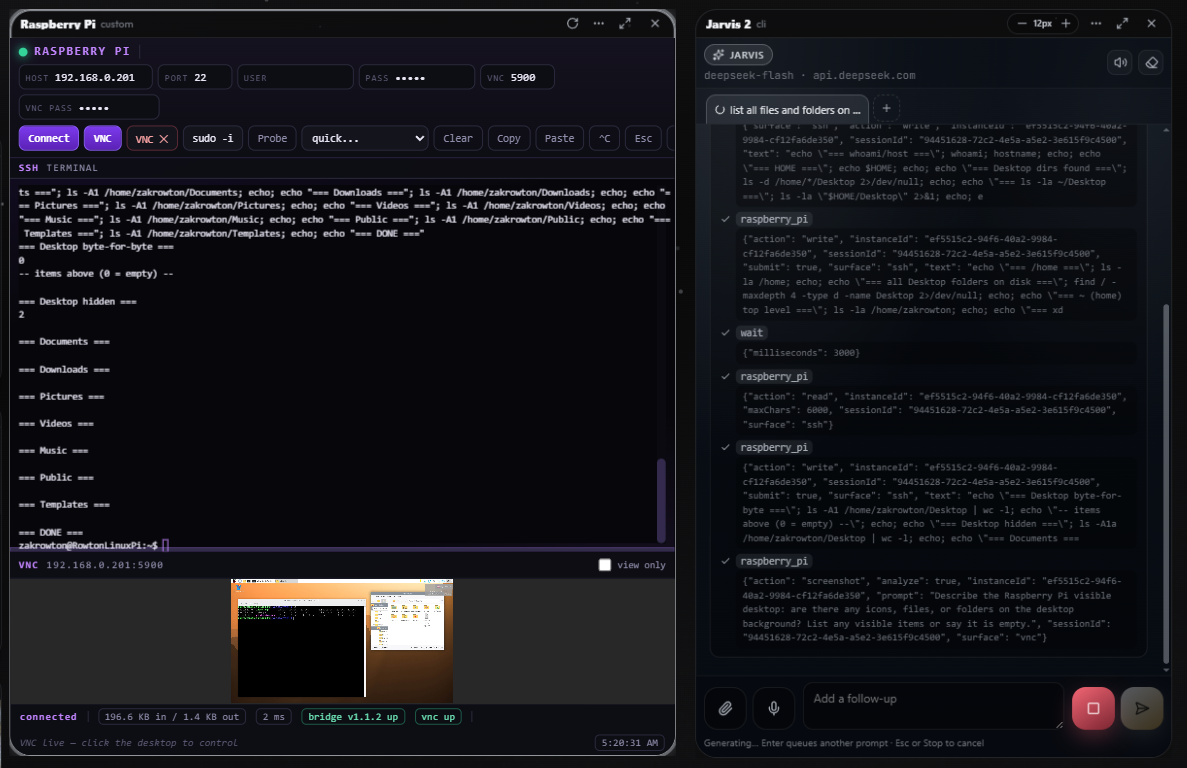
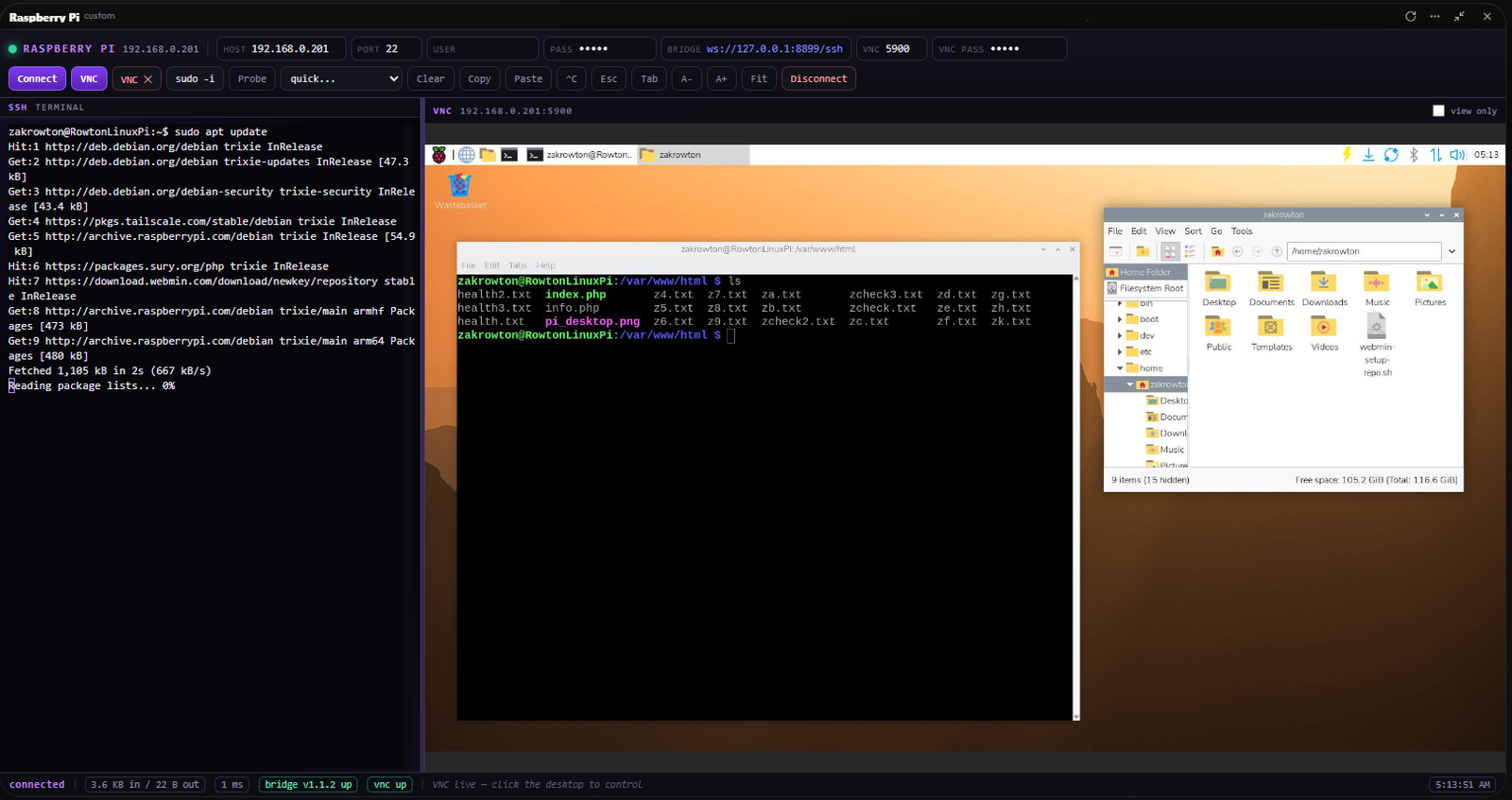
Put a real Raspberry Pi on your VibeFuse canvas: a live SSH terminal on the left, the Pi's actual desktop over VNC on the right, and Jarvis driving both for you.
One widget, two live surfaces. No SSH client, no VNC viewer, no copy-pasting IP addresses. Type in the shell yourself, or let Jarvis work the box end to end.
What the widget gives you
- Live SSH shell — a persistent session to the Pi. Run package installs, service restarts, config edits and long-running scripts without leaving the canvas, and keep the output in scrollback to read later.
- Live VNC desktop — the Pi's real framebuffer, not a mock. Click, type, scroll and drag the actual desktop, then screenshot it again to confirm what happened.
- Split layout — shell and desktop sit side by side in one window, so you can watch a command change what appears on screen.
- Vision checks — every VNC screenshot can be read, so Jarvis sees dialogs, errors and progress bars instead of guessing.
- Runs headless — the Pi can live in a drawer, in a rack or across the room. Only the network matters.
What Jarvis can do with it
- Drive the shell — write the command, submit it, wait, then read the real output before choosing the next step. Failures are read and retried, never assumed.
- Operate the desktop — connect the VNC surface, screenshot it, then click, type, press keys, scroll and drag using the real coordinates from that image, verifying each step with a fresh screenshot.
- Maintenance passes — update and upgrade packages, check disk and memory, read service status, restart what is wedged, and report back with the evidence.
- Project work — pull a repo, run a Python or Node script, edit config files, deploy a small service and watch the logs stream while it starts.
- Hardware and GPIO — read sensor values, toggle pins and confirm the result on the live desktop.
- UI automation — launch a desktop app or kiosk page and complete a task through the real interface, click by click, until the screen shows it done.
Getting started
- On the Pi, enable SSH and VNC — Raspberry Pi Configuration, or
sudo raspi-configunder Interfaces. - Make sure the Pi and this machine share a network, or reach each other over Tailscale.
- Open the widget, enter host or IP, port, username and password or key, then connect SSH and VNC.
- Type in the shell yourself, or just ask Jarvis — it will use the shell, the desktop, or both.
Good to know: commands run as the SSH user you sign in with, so anything needing root still needs sudo. VNC clicks always use coordinates from the latest screenshot, so they stay accurate even when a window moves.
Your credentials and your hardware stay on your own network.